
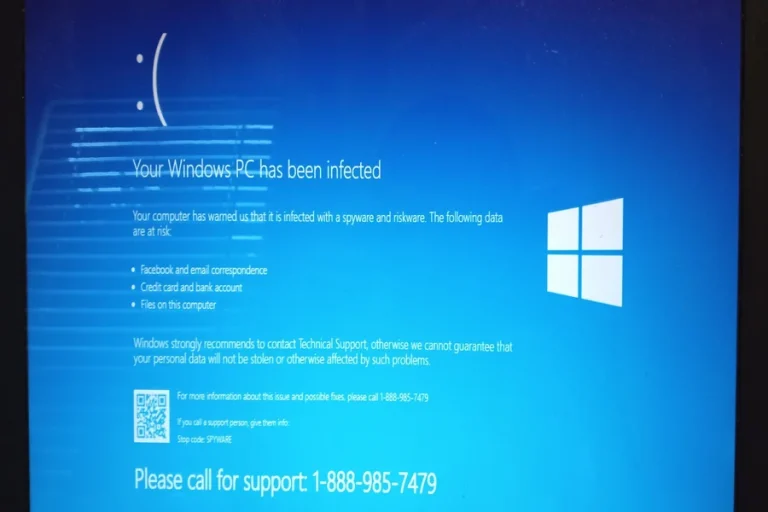
These days, no system is safe from malware, and we are all aware of the need to protect our systems. Spammy malware, intrusive ransomware, phishy viruses, you name it — no matter its name; it sets out to destroy your data, hog up your device’s resources, and sometimes also your personal, sensitive information. One of the first things you can do to stay safe from all the bad things out there is to learn how to tell if your computer is infected. That’s right, seeing the core signs is a priority—and when you know you are looking at malware, your next step is to take action to remove malware, and restore full health to your PC.
Common Signs of Malware Infection
Slow Performance
If your computer slows down without explanation, there’s a chance it has become infected with malware. Programs may need a longer time to load, and even the simplest tasks, such as browsing the web or opening a file, might seem to take forever.
Frequent Crashes or Freezes
A well-made computer shouldn’t crash consistently. If you get the blue screen of death (BSOD) or your computer is frozen frequently, malware might be corrupting critical files or processes on the computer.
Unwanted Pop-Ups and Ads
Pop-up ads that show up even when your browser is closed or when you’re offline could be a telltale sign that your computer is infected with adware or something even worse. These pop-ups frequently attempt to deceive you into clicking on links that can infect your partition with even more malware.
Unusual Network Activity
And if your internet connection is slower than normal, or you’re going through more mobile data than expected, reasons could include that malware is transferring information to remote servers or downloading additional files.
Programs Opening or Closing Automatically
Malicious software might be the reason your computer acts strangely. Apps may open or shut down without your input, and you may notice unfamiliar processes in Task Manager you wouldn’t normally see.
New Icons or Toolbars
If you see icons on your desktop that you don’t recognize or new toolbars that you didn’t manually install in your web browser, then they may have been installed on your system by malware without your authorization.
Disabled Security Software
One of the oldest tricks of certain malware is to shut off your antivirus or firewall to avoid detection. It could be a red flag if your security software won’t update or has been silenced without you doing anything to shut it up.
Ways to Verify if Your Computer is Infected by Malware
Run a full system scan with a reputable antivirus or anti-malware software to see if any infection. Products from companies such as Trend Micro, Malwarebytes, Windows Defender, or Norton can look for and warn you about malicious programs. You can also glance at the Task Manager (or Activity Monitor on a Mac) on your operating system to see if you notice any suspicious programs running or heavy resource usage.
It can also be a good idea to check your browser extensions and add-ons, since some adware and spyware programs end up on browsers to monitor activity or push ads.
Removing Malware from Your Computer
After malware is identified, removal of malware is next. Any of the three Standard antivirus programs includes a feature to quarantine or delete infected files. Some dangers, however, may persist and need to be tackled further.
There’s a general process for removing malware. Here it is:
- If you can, disconnect from the internet so malware cannot be transmitted to other machines or communicate with a remote server.
- Boot your computer into Safe Mode so that only the programs run and the malware cannot operate.
- Run a malware scan from the stable software you used to play those files.
- Quarantine or remove the infected files after the scan is complete.
- Keep your software and operating system up to date when patches are released.
- Change your passwords, especially if you think personal or financial information might be compromised.
Sometimes, you may have to rely on system restore points or reset your PC, wiping everything out to remove resistant threats.
Preventing Future Infections
To prevent your computer from infection in the future, install a reputable antivirus application and update it regularly. The best advice is to don’t download new software from weird places and don’t click links in emails or messages that are from people you do not know.
You can also safeguard yourself by backing up the important file regularly and turning on the firewall, making it tougher for outsiders to penetrate your computer. Also, consider a dedicated malware fighting tool besides your AV for defense in depth.
Final Thoughts
Recognizing the symptoms of a malware infection can keep damage to a minimum. If your computer behaves weirdly, heed instead of skirting them warning signs. Being proactive (and using the right tools), how you go about ridding your device of malware to protect yourself can be a relatively straightforward process — one that you really can’t go without.